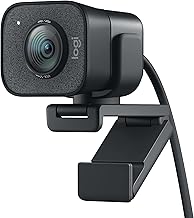
Logitech StreamCam Premium Webcam for Streaming and Content Creation, Full HD 1080p 60 fps, Works with Microsoft Teams, Google Meet, Zoom, Nintendo Switch 2’s new GameChat mode, for PC/Mac – Graphite
💰 Upgrade priority: lighting and mic > camera resolution for most video calls
FILTERS
🔍
SORTVIEW
ProductResolutionFrame RateAutofocusValuePrice
Logitech StreamCam Premium Webcam for Streaming and Content Creation, Full HD 1080p 60 fps, Works with Microsoft Teams, Google Meet, Zoom, Nintendo Switch 2’s new GameChat mode, for PC/Mac – Graphite
Logitech★★★★4.4Sold by MBM Sales via Amazon
—
—
—
—
$134.54
Specifications
Customer Reviews★★★★★4.8 · 5 reviews
★★★★★Works perfectly, a solid product
So much computer equipment fails on the package's promises but this one does do the job and has been working now for months.
Spatial King · 2026-04-15 · via amazon
★★★★★High res!
Love the quality and the resolution. We have the podcast and i use it also for Zoom meetings, crisp & clear.
Rudy Stankowitz · 2026-03-28 · via amazon
★★★★★Only downside is a wired-in USB cable
If you need a high-quality webcam--and who doesn't these days?--that's also good for streaming (streaming resolution for webcams is about half what the recording or photo resolution is, and not many cameras stream 1080p at 60fps), this is a great choice. I have mine mounted on an arm above my computer using the included universal tripod mount, but you can also attach it to the top of your monitor with the universal monitor mount. Image quality and detail is good enough to be a bit frightening. (Every freckle and wrinkle shows up, even in low light.) I haven't tested the microphone quality because I already use a studio mic in my office. The USB-C cable is great because that means that I could connect it to my smartphone or my traveling laptop if I wanted to, and those only have USB-C ports. And the USB-C cable is annoying because it's wired in, which means that you can't use a longer or shorter cable. Unlike a more typical webcam, you can't easily attach a privacy cover to it. But since it's an external camera, all you have to do is disconnect it. It does have a pretty obvious light on it that shows you when the camera is activated. I haven't quite wrapped my head around the Logitech Capture virtual camera software, specifically how to get it to work with my green screen. But if I use the camera directly with Zoom, the virtual green screen still works perfectly. (And Zoom still touches up my appearance so I don't see every freckle and wrinkle.) Windows did not actually recognize this as a camera until I'd installed the software, which was kind of annoying, but since then it's worked perfectly. Eventually I may manage to exploit some of the more sophisticated features, but even if I never use them, I'll still consider this camera well worth the money.
Sallie Goetsch (rhymes with sketch) · 2020-12-07 · via amazon
★★★★★Good camera, but settings need to stay locked in, and multi cameras don't work in G HUB
The first camera I bought is blurry on one side but I'm dealing with support about that. When I bought a second one, I realized the G HUB software, which lists all of my other peripherals including several LITRA GLOW lights, will only ever list one camera... so there's no easy way to set up software like OBS with multiple cameras for storing settings. Whether I'm rebooting or restarting OBS and its virtual camera, I often have to go in and tweak several settings on the cameras to make sure they look okay. And if I start Zoom or Google Meet, and it accidentally picks a Logitech camera instead of my OBS virtual camera, I have to go figure out how to reset the settings every time. This is a major hassle and wish Logitech had a better way to "lock" the settings so every software package can't tweak the settings... Overall, it's a good camera and I'm happy with the quality. The auto-focus is a bit too aggressive some times, like turning my head to look at something and turning back to face the camera will trigger the auto-focus sometimes. My main complaint is with the G HUB software to change the settings on the camera, and the fact that we can't set multiple cameras within G HUB.
Ian Douglas · 2023-11-25 · via amazon
★★★★★Clarifying Product Information
I never write reviews, but wanted to clarify some misconceptions and help other folks. There are some negative reviews about this camera, so I wanted to set the record straight. I only use this camera for work meetings (Zoom, Microsoft Teams etc) and so was content to plug it in and let it run. The quality of the image was terrible. People even told me the coloring was overly white and it looked like a cheap camera. I was debating whether to go back to my laptop camera. However, I took the advice of other comments on the logitech website, and downloaded the free software - on my personal laptop and work laptop. The software controls the image quality. I saw an IMMEDIATE difference in the image quality. I no longer looked washed out, but the quality improved dramatically. You can also control if the camera follows your face etc. There is also a free streaming. program for this camera, to further control the image quality. The Apps to download for FREE from logitech are: Logitech Capture Logitech Camera Settings Logitech Camera Settings is for any logitech camera, and you can control every details - lighting, brightening, camera width etc. Logitech Capture is for for this camera - and its a streaming app. With the app downloads, it is 100% beyond worth the value of the money. I have Microsoft Surface computers, so this could be part of the reason why I needed the apps - maybe other types of computers do not.